
Editing pages
Reserved pages and audiences
Since 2.6, a page can be reserved to some groups of website users, and a block can be shown to some visitors only. Both rely on the RainLab.User plugin.
What you need
Reserved pages and block audiences use the users and groups of RainLab.User. Without it, only the blocks for everyone and for guests are shown on the website.
Editors are never refused: signed in to the back-office, you always see every page and every block.
Reserve a page
- Open the page in the Editor and go to its Access tab.
- Tick the Allowed groups. With no group ticked, the page is for everyone.
- Save the page.
A visitor who is not in one of these groups is refused (see below). The reserved page is also left out of the menus of the visitors who cannot see it, out of the sitemap, and it is never served from a shared cache.
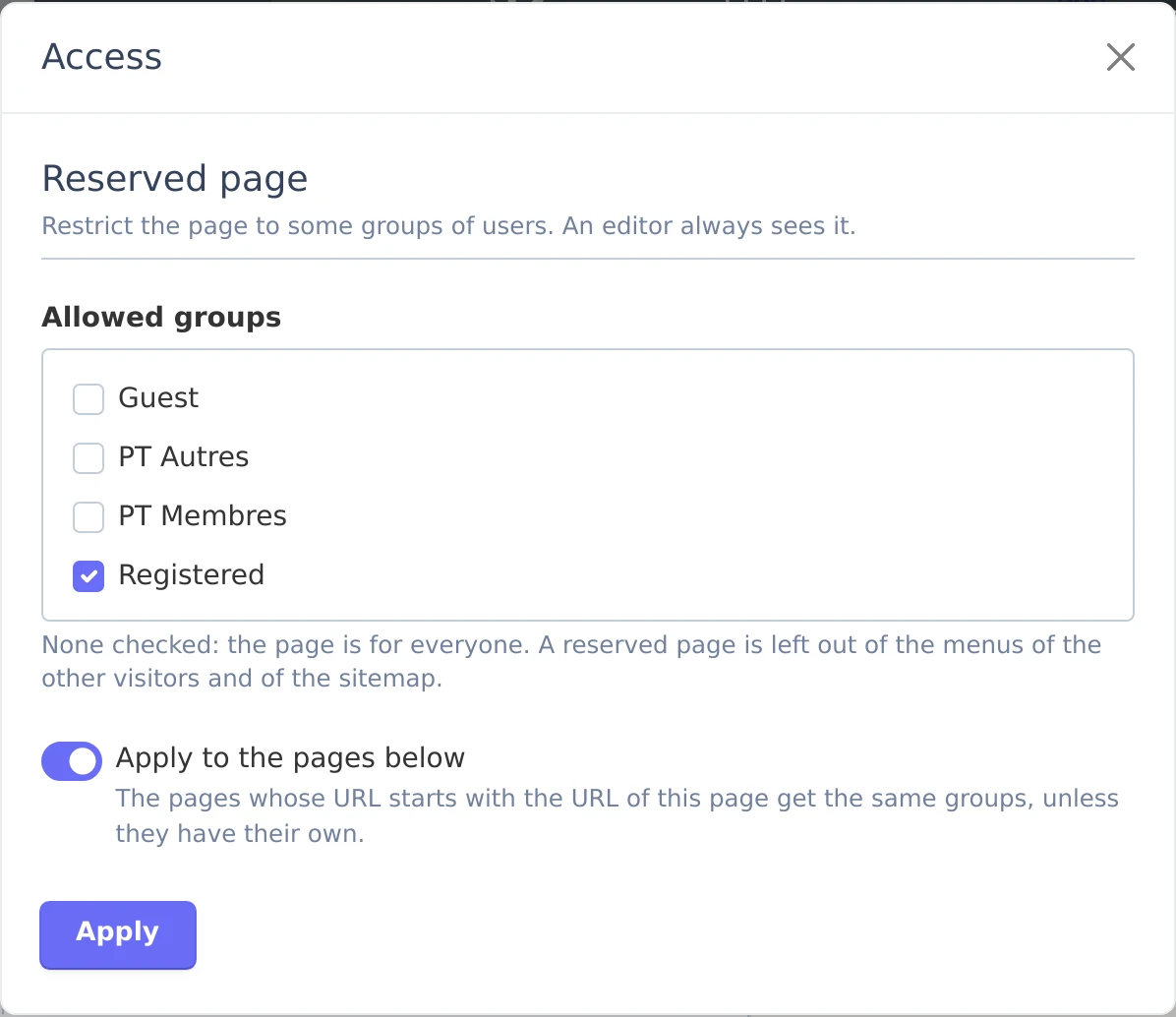
Apply to the pages below
Tick Apply to the pages below to reserve a whole branch: the pages whose URL starts with the URL of the page get the same groups, unless they have their own. With the page members, the pages members/... are reserved too.
The home page does not offer this option: reserving the home page reserves the home page only.
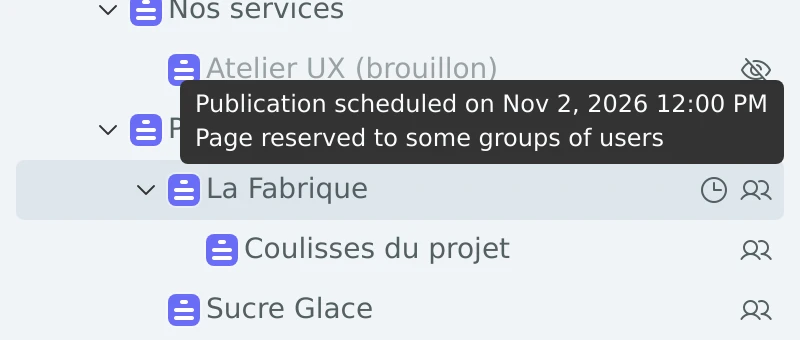
A reserved page put in the trash keeps reserving the pages below it, until a published page takes its URL (a draft is not enough). Deleted permanently, it gives its groups to the pages below it, which stay reserved.
What a refused visitor sees
The choice is made once for the website, in Settings → Block Pages Settings, Access tab, field Refused visitor:
| Option | Result |
|---|---|
| The 404 page | The page seems not to exist. |
| The sign in page (guests), then back to the page | A guest is sent to the Sign in page of the theme. The Authentication component of RainLab.User brings them back to the page after signing in. A signed in user without access sees the 404 page. |
| A page of the theme | Refused visitors are sent to the theme page chosen in Page shown. |
When RainLab.User is uninstalled, the reserved pages stay refused.
Show a block to some visitors only
A block can be shown to a part of the visitors without reserving the whole page. Open the Visibility popup of the block (see Working with blocks) and choose in Shown to:
- Everyone (default);
- Guests only;
- Signed in users only;
- Some groups, then tick the Groups.
In the website edit mode, the same fields are in the block form of the side panel.
The other blocks are not rendered for the visitor: the HTML of the page does not contain them. Editors see all the blocks, and a page with such blocks is not cached. In the block list of the Editor, a block with an audience is flagged with an icon (for example “Visible: guests only”).
For developers
A menu built by the theme from a query of the pages leaves the reserved pages out with PageAccess::canView($page):
use LucasPalomba\PageTree\Classes\PageAccess;

$pages = $pages->filter(fn ($page) => PageAccess::canView($page));
Another user plugin than RainLab.User plugs in with an access provider (LucasPalomba\PageTree\Classes\Access\AccessProvider: group options, signed in, groups of the user):
Event::listen('pagetree.access.registerProviders', fn () => new MyAccessProvider);The custom block fields named visibleTo and visibleGroups are reserved by PageTree.